Find your Valorant highlights automatically
Set your in-game name and select the moment types. GLworm then cuts a clip for each ace, headshot and knife kill.
GLworm can find the best moments in your Valorant videos. It reads the kill feed and cuts a clip for each moment that you select. This guide shows how to set up and start the analysis.
NOTE: The automatic analysis is part of a plan. A new account can use it free for 7 days. You can cut clips by hand on all plans. See Getting started.
Before you start
Make sure that each video agrees with these conditions:
- The game of the video is Valorant. To set the game, see Getting started, Figure 2.
- The video is horizontal. GLworm cannot analyze a vertical video.
- GLworm knows your in-game name. Step 1 shows how to set it.
1. Set your in-game name
GLworm uses your in-game name to find your kills in the kill feed. You set the name one time. GLworm uses it for all your Valorant videos.
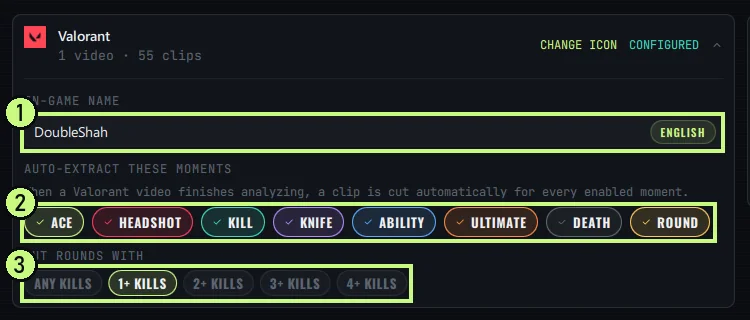
- Click the game icon below the screen list. The Configured Games screen opens.
- Find the Valorant card.
- In IN-GAME NAME (1), type your name as the kill feed shows it.
GLworm saves the name automatically. Upper case and lower case letters are the same for GLworm. GLworm also reads names in Arabic, Korean, Russian, Thai, Chinese and Japanese.
If you do not know how the kill feed shows your name:
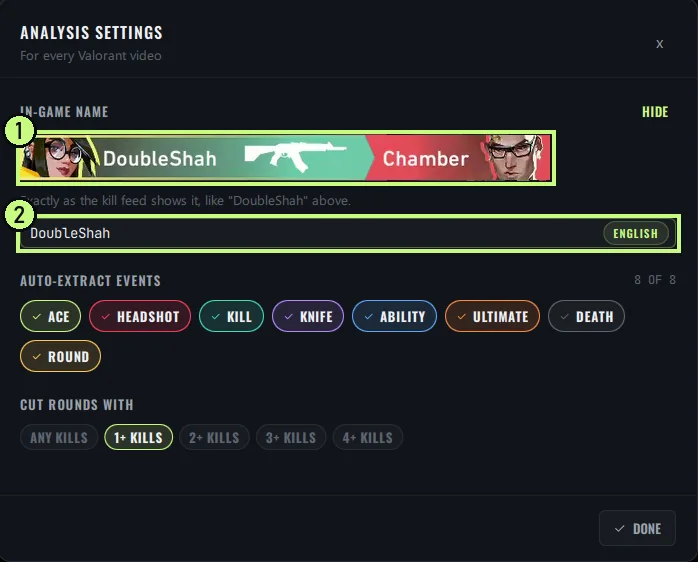
- In Extract, click EDIT on the analysis line. See Figure 3.
- Click NEED HELP. A kill feed example shows (1).
- Compare the example with your kill feed. Type your name in the field (2).
- Click DONE.
2. Select the moment types
GLworm finds eight types of moment in Valorant:
| Moment | What it is |
|---|---|
| ACE | You killed all the enemy team in one round. |
| HEADSHOT | A kill with a headshot. |
| KILL | A different kill that you made. |
| KNIFE | A kill with the knife. |
| ABILITY | A kill with an ability of your agent. |
| ULTIMATE | A kill with the ultimate of your agent. |
| DEATH | The moment when you died. |
| ROUND | A full round, from the start to the end. |
- On the Valorant card, find the moment types (2). See Figure 1.
- Click a moment type to turn it on or off. A moment type with a tick is on.
- If ROUND is on, select a value in CUT ROUNDS WITH (3). For example, 1+ KILLS cuts only the rounds where you made one kill or more.
GLworm saves each change immediately. All the moment types are on at the start.
NOTE: A kill can be two types. For example, a headshot with the knife. GLworm then makes one clip for each type.
3. Start the analysis
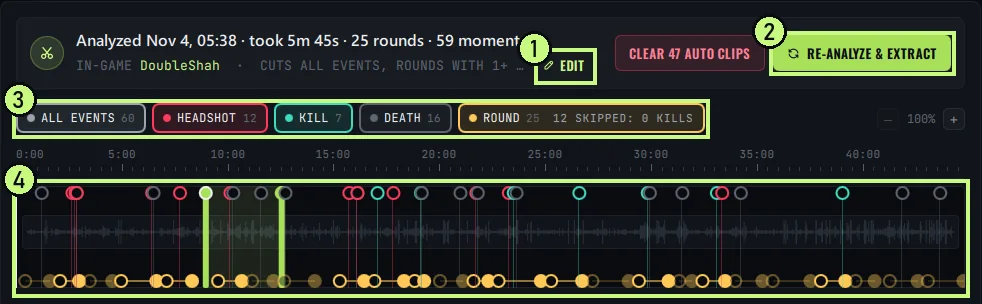
- Click Extract in the screen list.
- Click the video.
- Click ANALYZE & EXTRACT HIGHLIGHTS (2). If the video had an analysis before, the button shows RE-ANALYZE & EXTRACT.
The analysis line shows the progress and the time that remains. Clips show while the analysis continues.
- You can go to a different screen. The analysis continues, and GLworm tells you when it is complete.
- To pause the analysis, click STOP. To continue it, click CONTINUE. This also operates after you close GLworm.
- If you start a different video, it waits in a queue.
NOTE: The graphics card sets the speed. A DirectX 12 card is approximately 49 times faster than the processor alone. The result is the same at all speeds.
4. Examine the moments and the clips
- Look at the timeline (4) in Figure 3. Each circle is a moment. Each color is a moment type.
- To show one moment type, click its filter (3).
- To play a moment, click its circle.
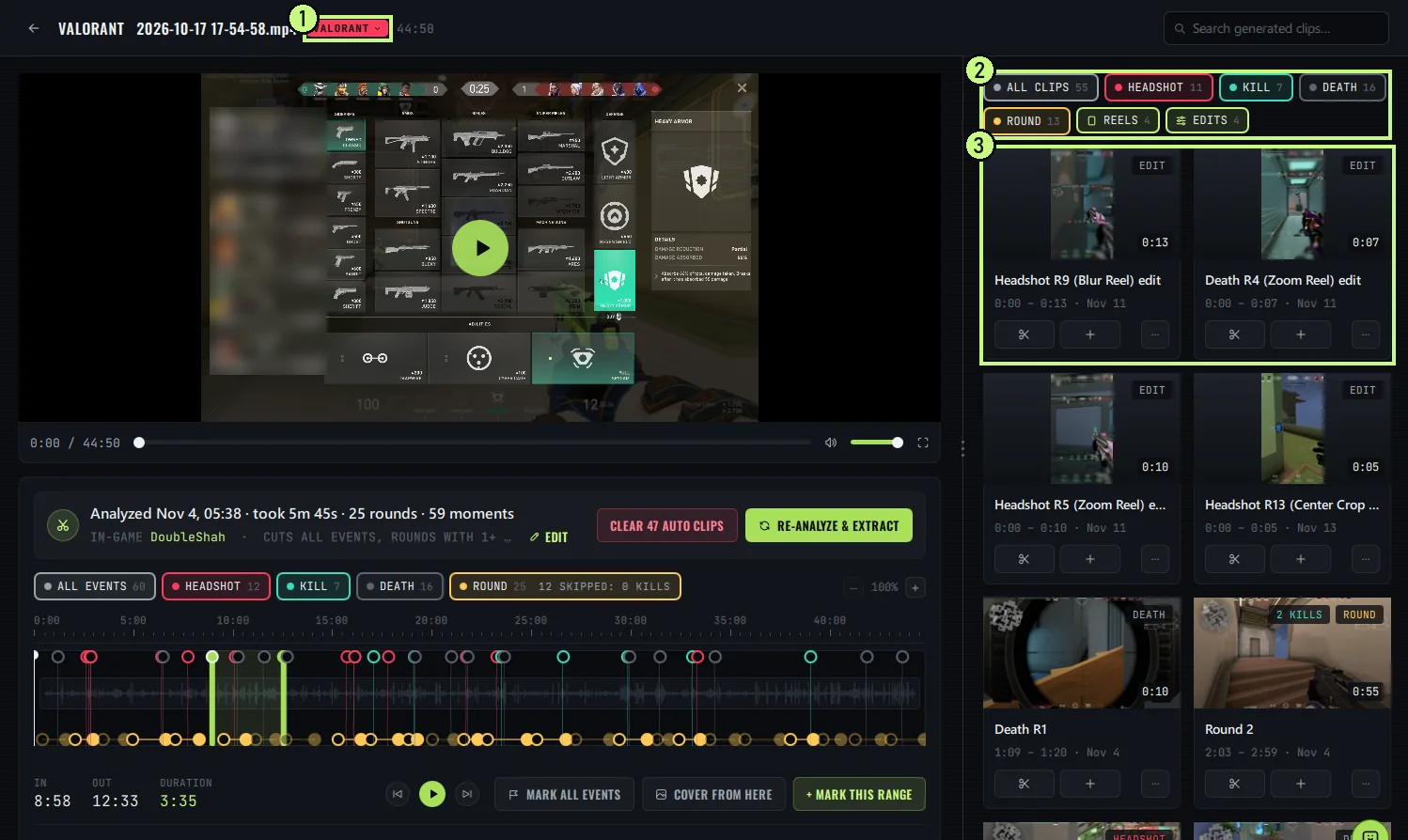
- Look at the clips (3) in Figure 4. To show one type of clip, click a clip filter (2).
The clips are also on the Clips screen.
To add a clip that GLworm did not cut, select a range on the timeline. Then click MARK THIS RANGE and EXTRACT 1 CLIP. See Getting started, Figure 3.
If you have a problem
| Problem | Do this |
|---|---|
| The analysis is blurred and shows "Requires an active subscription". | Buy a plan on the Pricing page. If you bought a plan, click Already subscribed? Check again. |
| GLworm found the rounds, but not your kills. | Make sure that your in-game name is correct. Use NEED HELP to compare it with the kill feed. |
| The analysis does not start. | Make sure that the game of the video is Valorant, and that the video is horizontal. |
For more help, go to the Help Center.
More guides
- 03
Turn old Valorant recordings into highlight clips
Add the folder of your old recordings, set the game of each video and put the videos in the queue. GLworm cuts the clips.
- 04
Edit a clip and make a 9:16 reel
Add text, stickers and sound to a clip. Then make a 9:16 reel for Shorts, TikTok and Instagram Reels.
- 05
Make Valorant TikToks that keep the kill feed
Make a 9:16 reel that keeps the kill feed and the minimap. Use the Blur layout, or put each area where you want it.
- 06
Post your clips from GLworm
Connect your accounts and post a clip to YouTube, TikTok, Instagram, Facebook or Discord. Then look at the views.
- 01
Getting started with GLworm
Install GLworm, sign in, add your videos and make your first clip. Then find your clips.
Your next highlight is already recorded.
Point GLworm at the recordings already on your drive. Every game edits free, and Valorant highlights get found for you.
- OS
- Windows 10 / 11, 64-bit
- Graphics
- DirectX 11
- Memory
- 4 GB
- Display
- 1400 × 720 or larger
A DirectX 12 GPU is optional, and it is what makes detection fast.