Post your clips from GLworm
Connect your accounts and post a clip to YouTube, TikTok, Instagram, Facebook or Discord. Then look at the views.
The Share screen posts a clip to YouTube, TikTok, Instagram, Facebook and Discord. It also keeps a list of your posts, with the views and likes of each post. This guide shows how to connect your accounts and post a clip.
GLworm posts a clip only when you click POST. It posts only to the accounts that you connected.
NOTE: Posting from GLworm is part of a plan. A new account can use it free for 7 days. To connect an account and see your posts is free on all plans. On all plans, you can download a clip and upload it yourself. See Pricing.
1. Connect your accounts
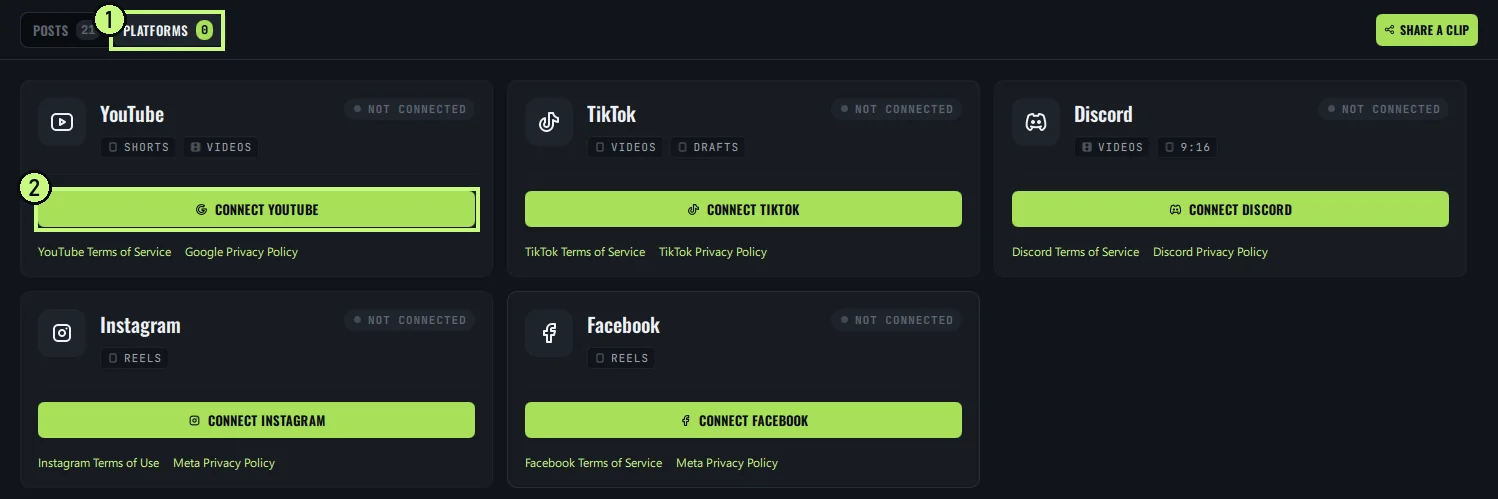
- Click Share in the screen list.
- Click PLATFORMS (1).
- On the card of a platform, click its connect button (2). For example, CONNECT YOUTUBE.
- Sign in on the page of the platform.
- Go back to GLworm. The card shows that the account is connected.
You can connect these accounts:
| Platform | Account |
|---|---|
| YouTube | Your channel. |
| TikTok | Your TikTok account. |
| A Business account or a Creator account. | |
| A Page that you manage. | |
| Discord | A channel on a server. You select the server and the channel on the Discord page. You can connect many channels. |
To disconnect an account, use the same card.
2. Select a clip
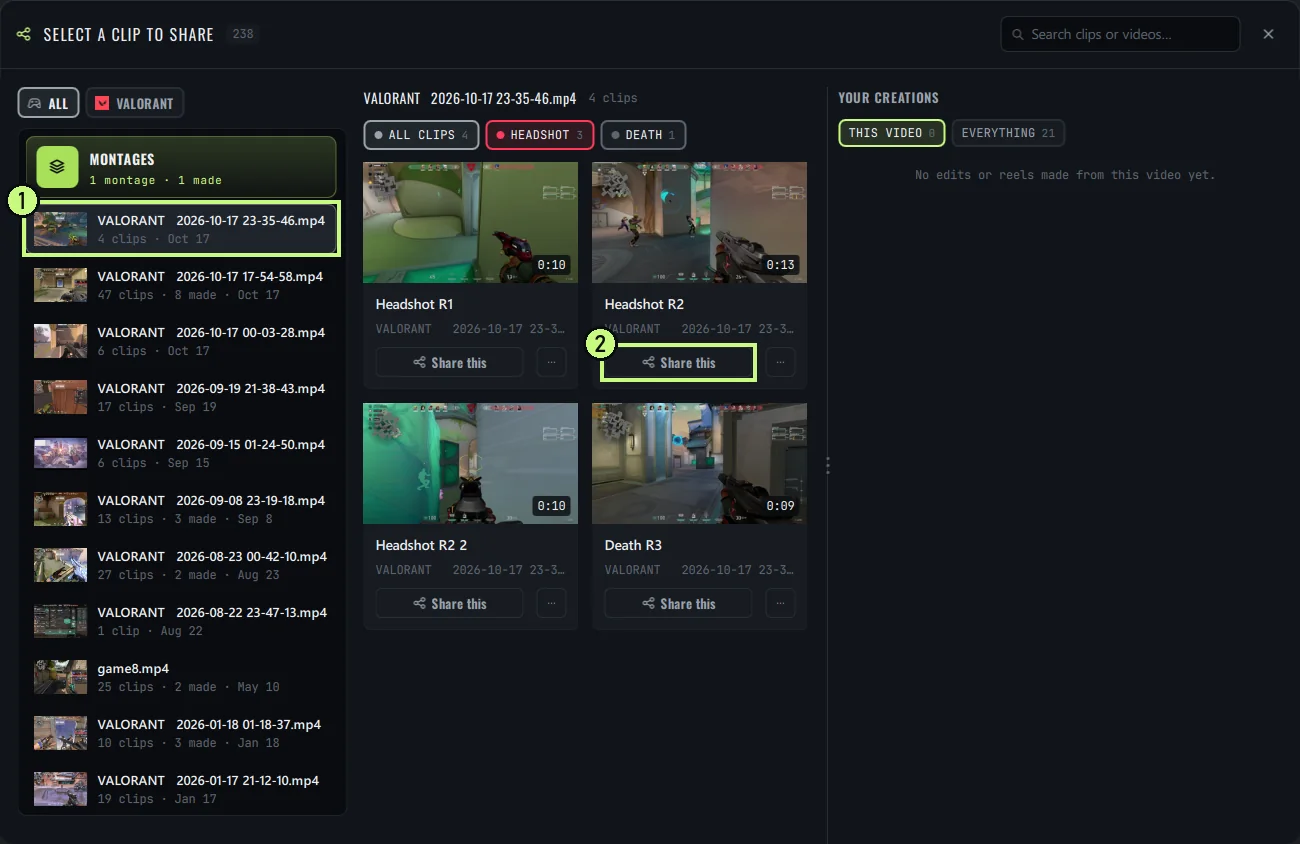
- On the Share screen, click SHARE A CLIP. See Figure 4.
- Click the video of the clip (1).
- On the clip card, click Share this (2).
You can also click Share in the menu of a clip card on the Clips screen.
YouTube Shorts, TikTok, Instagram and Facebook use the 9:16 version of the clip. If the clip has no 9:16 version, make it first. See Edit a clip and make a 9:16 reel.
3. Write the post
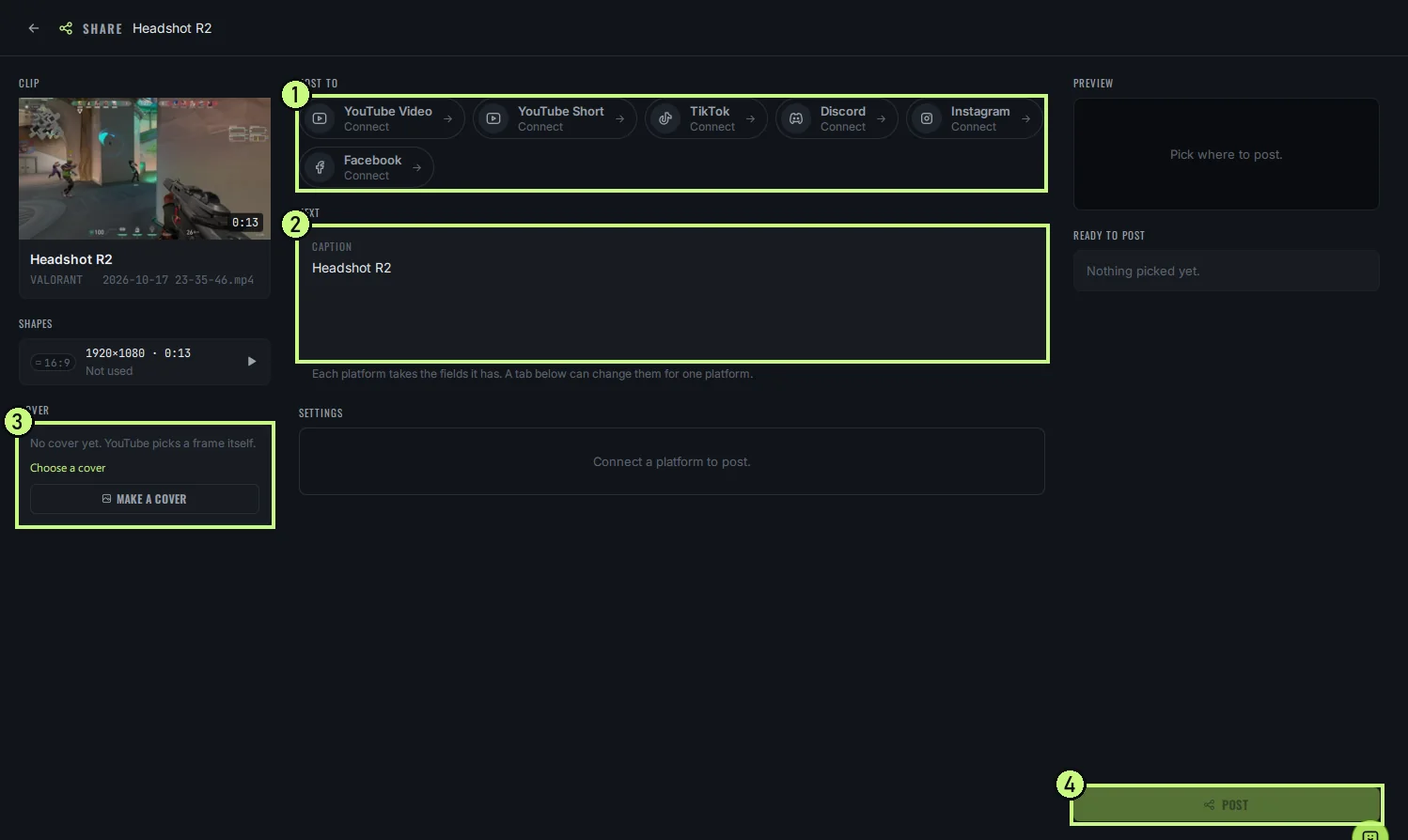
- In POST TO (1), click each platform for the post. Each platform adds its settings below.
- In the text area (2), write the caption. GLworm starts with the name of the clip.
- Set the settings of each platform. A tab below the text area changes the text for one platform only.
- In the cover area (3), click Choose a cover. Or click MAKE A COVER to make a cover in the Editor.
The settings of each platform are:
| Platform | Settings |
|---|---|
| YouTube | Post as a Short, a video, or the two. Set the title, the description and who can see it. Set if it is for children. |
| TikTok | POST NOW posts the clip. EDIT IN TIKTOK sends it to your TikTok inbox as a draft. You must select who can see it. Set if people can comment, Duet or Stitch. |
| GLworm posts the 9:16 version as a Reel. | |
| GLworm posts the 9:16 version as a Reel on your Page. | |
| Discord | Select the channels. Write a message. You can mark it as a spoiler. |
NOTE: If the clip is too large for a Discord channel, GLworm makes a smaller copy first.
4. Post the clip
- Click POST (4).
- Look at the row of each platform. It shows the progress of the upload.
You can go to a different screen. The upload continues.
- If the connection stops, GLworm connects again and continues.
- If a platform does not accept the post, its row shows the cause. Click TRY AGAIN.
After the upload, the platform must process the video. The row tells you when the post is on your profile.
5. Look at your posts
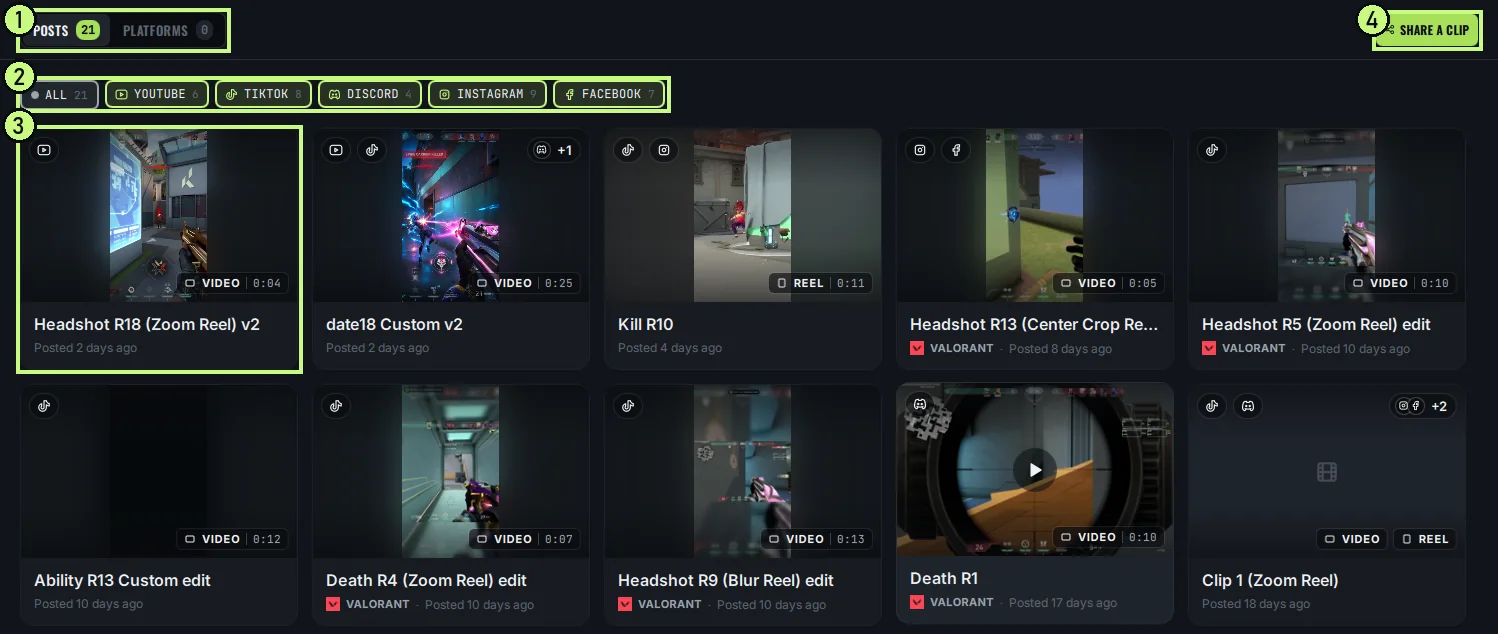
- Click POSTS (1). The newest post is first.
- To show the posts on one platform, click its filter (2).
- Click a post card (3). The card shows all the posts of the clip, with their views, likes and links.
On the post card, you can:
- Change the cover of a YouTube video. Click CHANGE THE COVER.
- Copy the link of a post.
- Play a post in GLworm.
GLworm gets the numbers from each platform when you look. Each number is for one post. GLworm does not add the numbers together.
Other information
- For a different website, download the clip and upload it yourself. Open the menu of the clip card, then click Download.
- GLworm AI can write a post for you. You must connect the accounts and click POST yourself.
- GLworm does not put a watermark on the clips that you post.
More guides
- 01
Getting started with GLworm
Install GLworm, sign in, add your videos and make your first clip. Then find your clips.
- 02
Find your Valorant highlights automatically
Set your in-game name and select the moment types. GLworm then cuts a clip for each ace, headshot and knife kill.
- 03
Turn old Valorant recordings into highlight clips
Add the folder of your old recordings, set the game of each video and put the videos in the queue. GLworm cuts the clips.
- 04
Edit a clip and make a 9:16 reel
Add text, stickers and sound to a clip. Then make a 9:16 reel for Shorts, TikTok and Instagram Reels.
- 05
Make Valorant TikToks that keep the kill feed
Make a 9:16 reel that keeps the kill feed and the minimap. Use the Blur layout, or put each area where you want it.
Your next highlight is already recorded.
Point GLworm at the recordings already on your drive. Every game edits free, and Valorant highlights get found for you.
- OS
- Windows 10 / 11, 64-bit
- Graphics
- DirectX 11
- Memory
- 4 GB
- Display
- 1400 × 720 or larger
A DirectX 12 GPU is optional, and it is what makes detection fast.